
Can I automatically install downloaded materials to palettes?
You can turn on which types of materials you would like to have automatically installed from the Material palette > Auto-install settings.
Materials downloaded from Assets will then automatically be installed to the corresponding palette.
If you are using Clip Studio Paint on tablet or smartphone, please switch to Studio Mode first.
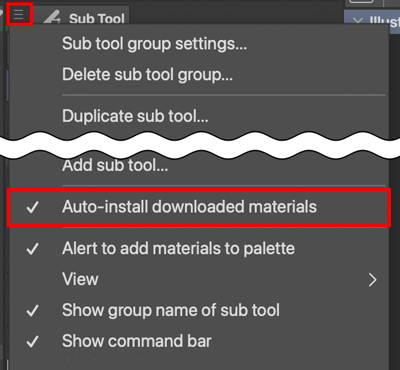
You can also set it from each palette menu with Auto-install downloaded materials.
Material types that can be automatically installed
The following materials can be auto-installed.
- Sub tools (brushes, gradients, tool settings)
- Color Set
- Gradient set
- Workspace
- Auto Action
Install location
Sub tools (brushes, gradients, tool settings)
These materials will automatically be added to the Downloads tool group in the Tool palette.
See here for how to move materials from the Download tool group to other tool groups.
Color Sets
Downloaded color sets will be added to the list of color sets.
Gradient set
Downloaded gradient sets will be added to the list of gradient sets.
Workspace
Downloaded workspaces will be added to the list of workspaces.
Auto Action
Downloaded Auto Actions will be added to the list of Auto Actions.
If the feature doesn't display
This feature is limited to Ver. 4.2.0 or later.
Please update to a version after Ver. 4.2.0.
Check out which license is needed to use a later app version from the page below.