
Ver. 5: The default layout changed
In Clip Studio Paint Ver. 5.0, the default palette and command bar placements in Studio Mode have been changed.
If you want to use the previous layout
Select Window > Workspace > Ver. 4.2 layout.
Check that the palettes are now in the previous layout.
How to manually adjust palette placement
Please follow the method below.
Palette layout before Ver. 4.2
1. Tap on the < icon on the left.
2. Drag the icons on the right one by one to the icons on the left.
- Drag to where you want to place the icon until a red line appears and then release the mouse or pen to move it.
- If operation is difficult on tablet with a pen, try moving icons with your fingers.
3. Adjust the order of the left icons.
How to register a workspace
1. Select Window menu > Workspace > Register Workspace.
2. Change the name as needed and select OK.
e.g. Workspace1, favorite, etc.
3. Check that your new workspace shows up under Window menu > Workspace.
4. To check if it was registered properly, select Window menu > Workspace > Illustration or Comic to temporarily switch to a different workspace.
5. Select your registered workspace from the Window menu > Workspace.
6. Confirm that your registered workspace has been applied.
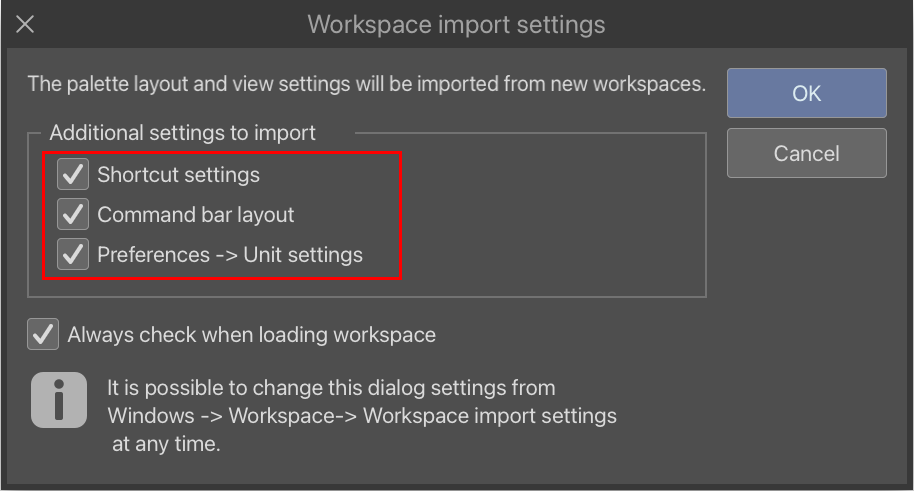
It's possible to choose if the below items should be imported when switching workspaces.
- Shortcut settings
- Command bar layout
- Preferences -> Unit settings
Display palette pop-ups
If adjusting the layout and registering it as a workspace isn't enough, then you can also set up pop-up display.
In pop-up view, the palettes will not display when you tap outside of it.
How to set it
Select Window menu > Palette dock, then Display (palette name) as pop-up.
If you want to use the previous command bar
Please refer to the following layouts and follow the steps below.
Command Bar layout from Ver. 5.0 or later
Command Bar layout from Ver. 4.2 or earlier
1. Select File menu > Command Bar Settings.
2. Under Menu commands, select the following commands to add them.
Edit Menu
- Delete Outside Selection
Selection area Menu
- Deselect
- Invert selected area
- Show border of selected area
View Menu > Snap
- Snap to rulers
- Snap to special rulers
- Snap to grid
3. Drag the added command icons around to adjust their placements.
- Drag to where you want to place the icon until a red line appears and then release the mouse or pen to move it.
- If operation is difficult on tablet with a pen, try moving icons with your fingers.