Please tell me how to correct the line thickness after drawing
The method of adjusting line thickness depends on the type of layer which the lines were drawn on.
Please check the following steps for depending on the layer type.
For raster layers
1. Select the layer whose line thickness you want to modify.
2. Select Filter menu > Correction > Adjust line width.
3. Make the following settings in the Adjust line width dialog.
(2) Adjust the correction amount of the line width with Scale.
(3) Click OK.
* When Preview is turned on, the settings will be previewed on the canvas.
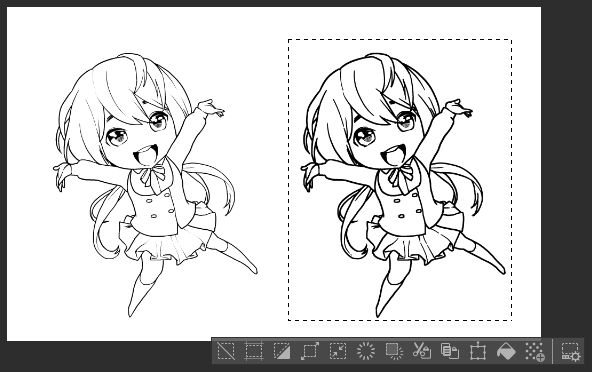
If you use the Selection area tool to specify a range, Adjust line width is applied only to the specified range.
For vector layers
To correct the thickness of part of the line
1. With the layer whose line thickness you want to adjust selected, select the Correction tool > Adjust line width tool.
2. Set the line width correction method and numerical value in the Tool Settings palette.
3. Adjust the brush size according to the range you want to add the effect.
4. You can modify the line thickness by dragging the vector line.
When correcting the thickness of the entire line
1. With the layer you want to modify the line thickness selected, select the Operation > Object tool.
2. You can modify the line thickness by changing the Brush Size value on the Tool Settings palette.
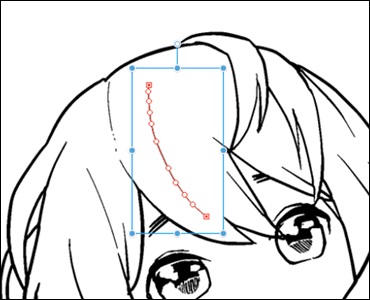
Click the vector line with the Object tool to see the path, control points, and bounding box.
In this state, you can adjust the thickness of one line by changing the brush size .