
How do I import 3D files?
You can import files with either Realistic or Basic methods depending on the 3D file.
See below for details on each mode.
Realistic
Specific 3D files can be imported with realistic textures, such as glossy metals and panorama reflections.
In the Import 3D file dialog, select Realistic (recommended).
You can also import files with realistic textures with the following setting.
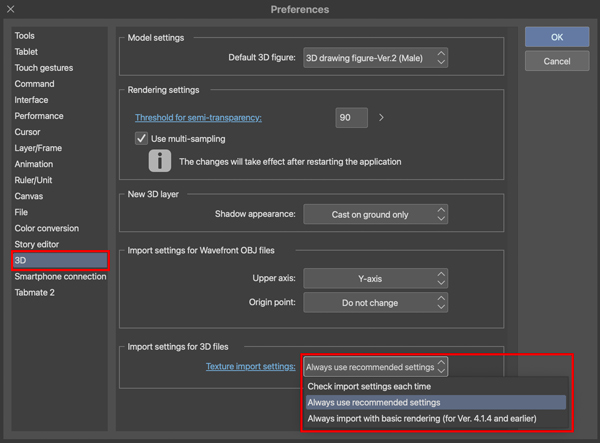
・Under Preferences > 3D > Import settings for 3D files, set the Texture import settings to Always use recommended settings
Files that support realistic textures
Ver. 4.0.0 ~ 4.2.7
- gltf file format
- FBX or OBJ format files that have a PBR material set
Ver. 5.0 and later
- gltf file format
- FBX or OBJ format files that have a PBR material set
- VRM files
Important
- It is not possible to switch to basic textures after loading a file with realistic rendering.
- Files imported with realistic rendering cannot be edited in versions before 4.2.
- A material that was imported with realistic rendering cannot be used in versions before 4.2.
- To reflect photorealistic materials in Ver. 5.0 and later, in the Advanced Tool Settings palette, go to Light Source and then turn on Apply light source.
Basic
You can import files with textures in prior versions (before 4.1.4).
Metallic textures and panorama reflections will not be expressed.
Important
It is not possible to switch to realistic textures after loading a file with basic rendering.
Toggle the display of the Import 3D file dialog
Hiding the dialog
Check the Do not show again box.
The most recent import setting will be kept and the dialog will no longer appear.
Displaying the dialog
You can display the dialog again by the following methods.
- From Preferences > 3D > Import settings for 3D files, select Check import settings each time under Texture import settings.
- In Reset to original defaults, turn on Restore confirmation dialogs or Preferences.
If the feature doesn't display
If you cannot import realistic textures
This feature is limited to Ver. 4.2.0 or later.
Please update to a version after Ver. 4.2.0.
If you cannot import VRM files with realistic textures
This feature is limited to Ver. 5.0.0 or later.
Please update to a version after Ver. 5.0.0.
Check out which license is needed to use a later app version from the page below.