
Galaxy/Android: How do I use the app after I sign up for an annual/monthly plan?
After applying for an annual/monthly plan, you will need to authenticate your license to use the app.
Preparation
To authenticate your license, you will need the latest version of Clip Studio Paint.
Please update and authenticate the license it from the following page.
● Galaxy Store
● Google Play
Authenticating your license
1. Launch the app.
2. Select Log in.
Note: If you do not see this screen, go to Review/Change License.
3. Log in to your Clip Studio account.
4. The license will be automatically authenticated and the app will launch.
Select the monthly or annual plan license you want to use and press Launch.
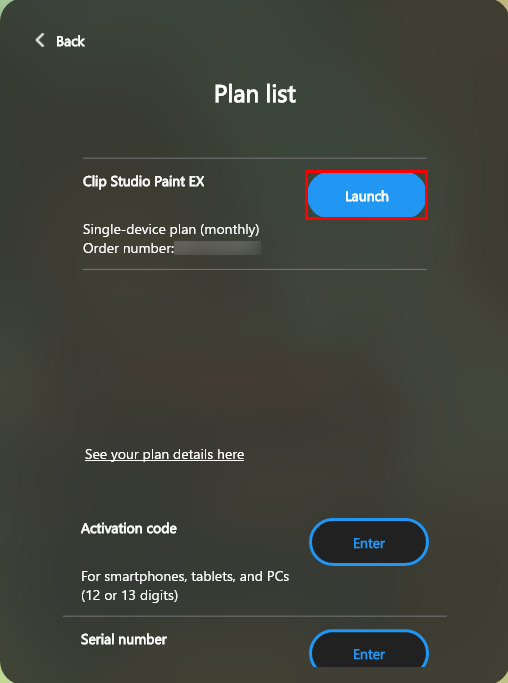
If you don’t see a license list
Please see here FAQ.
How to open Review/Change License
● For tablets (Galaxy Tab/Android)
Tap the Clip Studio Paint icon > Review/Change License.
● For smartphones (Samsung Galaxy Tab/Android)
(1) Tap the ≡ icon and select App Settings.
(2) Tap Review/Change License.
People who read this FAQ also viewed FAQ like this.