
What is Save in compatibility mode?
Saving in compatibility mode allows you to edit a file even if the app version does not support the features used in the work.
Use this when sharing work across multiple versions.
- For compatible version information, files must be saved in the app version that supports the features used.
- The file size and the time it takes to save the file may increase.
No compatibility information: The entire canvas is locked and cannot be edited.
With compatibility information: Only layers containing unsupported features will be locked, allowing you to edit the canvas.
How to save in compatibility mode
If you are using Clip Studio Paint on tablet or smartphone, please switch to Studio Mode first.
1. On the device and app version where works are being shared, open the file using the newer app version.
If the file contains old format 3D materials, compatibility information may not be saved in the newer version. See here for details.

Old format 3D materials will have a “!” in the layer icon.
2. Open Preferences.
3. Select File.
4. Under Compatibility mode, tap Save or Ask when saving then tap OK.
5. Tap File menu > Save as.
Note: The Save option does not embed version compatibility information to the clip file.
If you see the following dialog box, check Save in compatibility mode and then tap OK.
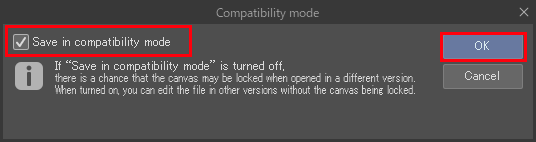
Once saved, the file can be edited even in app versions with unsupported features.
If a file with an old format 3D material layer is Read only
Files containing old 3D format layers may have editing restrictions depending on the OS or app version.
Please see here for a workaround.
If the feature doesn't display
This feature is limited to Ver. 1.13.0 or later.
Please update to Ver. 1.13.0 or later.